阅读背景:

uniapp使用uview 的 u-tabbar,直接复制可用

来源:互联网 
1. 第一步,在项目下创建文件夹(components等文件)
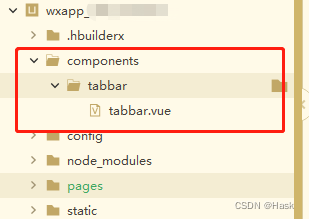
在这里插入图片描述
tabbar.vue中的代码:

<template> <view> <u-tabbar :value="current?current:1" @change="changeTab" :fixed="true" :safeAreaInsetBottom="true" :border="true" :placeholder="true" activeColor="#4E94EC"> <u-tabbar-item v-for="(item,index) in list" :key="index" :name="item.id" :text="item.text"> <image class="u-page__item__slot-icon" slot="active-icon" :src="item.selectedIconPath"></image> <image class="u-page__item__slot-icon-index" slot="inactive-icon" :src="item.iconPath"></image> </u-tabbar-item> </u-tabbar> </view> </template> <script> export default { name:"tabbar", data() { return { list: [ { id: 1, // 图片更换成自己的哈 selectedIconPath: "../../static/tabbarImg/tab1-selected.png", iconPath: "../../static/tabbarImg/tab1.png", text: '首页', pagePath: "pages/index/index" }, { id: 2, selectedIconPath: "../../static/tabbarImg/tab2-selected.png", iconPath: "../../static/tabbarImg/tab2.png", text: '订单', pagePath: "pages/order/index" }, { id: 3, selectedIconPath: "../../static/tabbarImg/tab3-selected.png", iconPath: "../../static/tabbarImg/tab3.png", text: '我的', pagePath: "pages/mine/index" } ], }; }, props: { current: { type: Number, default: 1 } }, methods: { changeTab(e) { // 用 switchTab 的前提要在 pages.json中 注册好 tabBar // 可以把 switchTab换成其他的跳转(比如:navigateTo) 不过好像页面会闪一下,建议switchTab uni.switchTab({ url: '/' + this.list[e-1].pagePath, }) // pages.json 的代码我直接粘贴到这里 //------------- "tabBar": { "custom": true, "list": [{ "pagePath": "pages/index/index", "text": "首页" }, { "pagePath": "pages/order/index", "text": "订单" }, { "pagePath": "pages/mine/index", "text": "我的" }] } //----------- } } } </script> <style scoped> .u-page__item__slot-icon{ width: 21px!important; height: 21px!important; } .u-page__item__slot-icon-index{ width: 20px!important; height: 20px!important; } </style> 2. 第二步在对应的tabbar页面(就是那三个页面,我就拿第一个举例


你的当前访问异常,请进行认证后继续阅读剩余内容。

分享到: